
Sky Stream Setup Abroad: Quick VPN Router and Puck Guide
Your first Sky Stream setup abroad: from unboxing to watching in 15 minutes
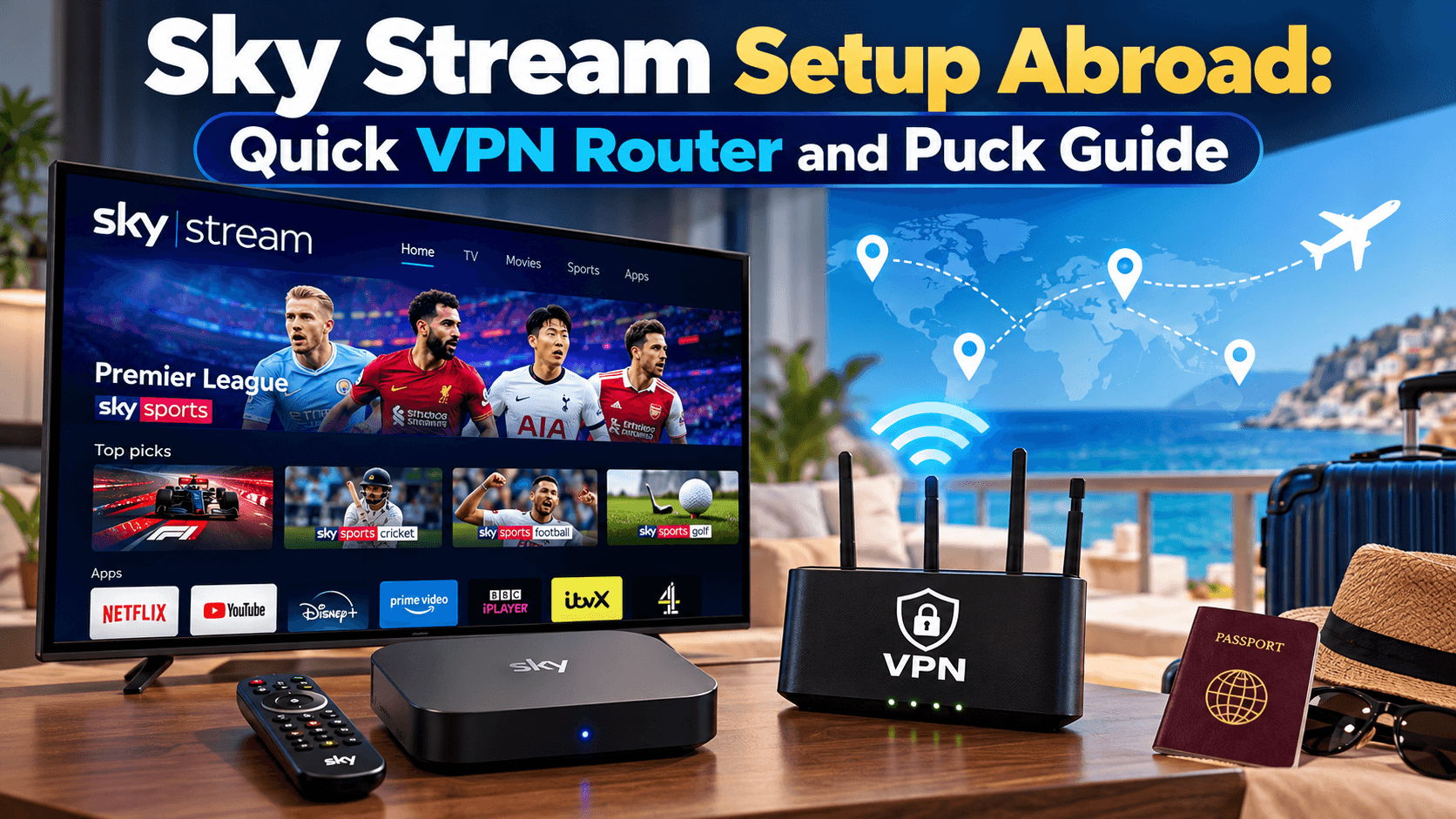
New country, new TV setup, same great Sky experience. If your Sky Stream Puck has just arrived, this guide walks you from unboxing to your first programme in around 15 minutes, including Wi-Fi via our plug-and-play VPN router so your apps behave like you are at home in the UK.
You will connect HDMI and power, pair the remote, join Wi-Fi through the VPN router, and sign in to the apps you use every day. Stuck on a black screen or “no signal”? We have quick fixes below. Prefer us to do it all for you? Our Setup Support Service can configure everything for a completely hands-off start.
What you need in the box
- Sky Stream Puck and power supply
- HDMI cable
- Sky Stream Puck remote with batteries
- Your plug-and-play VPN router from SkyStream.eu (pre-configured before shipping)
Have your home Wi-Fi password handy if you will bridge the VPN router to an existing network, and your app logins for BBC iPlayer, ITVX, Channel 4, My5, Netflix and Discovery+.
Step 1: place the VPN router and power it up
Your VPN router creates a UK internet environment abroad, which is essential for smooth sign-ins and to keep UK apps working properly. Plug the VPN router into power, then connect it to your internet via Ethernet to your primary modem or by following the card in your package. Wait 2 to 3 minutes for the VPN to establish. The router broadcasts its own Wi-Fi network, ready for the Puck to join.
Tip: Put the VPN router in the same room as the TV for the fastest first-time setup.
If you want a deeper walkthrough, see our simple Sky Stream setup guide with screenshots at the Sky Stream user set up guide.
Step 2: connect the Puck to your TV
Yes, the Sky Puck plugs straight into a TV. Use the included HDMI cable to connect from the Puck’s HDMI port to the TV. Any HDMI port will work, though for the best picture quality choose a 4K or HDMI 2.0/2.1 port if your TV labels them. Many sets mark these as HDMI 1 or HDMI ARC/eARC; check your TV manual if you are unsure.
- Power on the TV, then select the HDMI input you used.
- Plug the Puck into mains power. The light will come on and you will see the Sky Stream welcome screen within a minute.
If you get no picture, try a different HDMI port, reseat the cable at both ends, and confirm the TV input matches the port.
Step 3: pair the remote
Insert the batteries. When prompted on screen, hold 1 and 3 together on the Sky Stream Puck remote to pair. Follow the prompts to set TV volume and power control. If pairing does not appear, point the remote at the Puck and repeat, or power-cycle the Puck and try again.
Step 4: join Wi-Fi through the VPN router
On the Puck, choose your language and region, then select the VPN router’s Wi-Fi network from the list and enter its password. This ensures your Sky Stream apps and live services authenticate and behave as if you were in the UK.
You can now sign in to your Sky account and any included streaming apps. If you ordered our optional Setup Support Service, these will already be configured, so you can start watching immediately.
Step 5: sign in to apps, or let us pre-configure them
If you prefer to self-setup, open each app and follow the on-screen sign-in. The VPN router makes this smooth abroad. If you would rather skip logins and settings, choose our done-for-you Setup Support Service at checkout and we will prepare BBC iPlayer, ITVX, Channel 4, My5, Netflix and Discovery+ so everything is ready on arrival.
Want to explore packages and how Sky Stream works overseas? Read more about the Sky Stream subscription and what is included in live and on-demand apps.
Quick fixes if your Puck is not working
If your Sky Puck is not showing a picture or seems unresponsive, work through these fast checks:
- No signal on TV: Confirm the TV input matches the Puck’s HDMI. Try HDMI 1 first, then another port. Reseat or swap the HDMI cable.
- Black screen after boot: Power the TV and Puck off at the wall for 30 seconds. Power the TV first, then the Puck.
- Remote not controlling the Puck: Hold 1 and 3 to re-pair. Replace batteries if needed.
- Cannot see Wi-Fi or apps fail to sign in: Wait for the VPN router to finish connecting, then reconnect Wi-Fi on the Puck to the VPN router’s network. If your main modem was restarted, reboot the VPN router as well.
- Audio but no video or flicker: Use a certified high-speed HDMI cable and a 4K-capable HDMI port on the TV. Set the TV picture mode to standard while testing.
- App-specific issues: Sign out and back in, clear cache where supported, or reinstall the app from the Puck’s app store.
Still stuck? Email info@skystream.eu or call +44 (0) 2032 838 000 and we will get you streaming.
Which HDMI port should you use?
Any spare HDMI works, but for 4K UHD choose a port that supports 4K 60 Hz and HDCP 2.2 on your TV. Manufacturers often make HDMI 1 or HDMI 2 the 4K-optimised port. If your TV labels one HDMI as ARC or eARC, you can still use it for video from the Puck. If picture quality looks soft, move the cable to a 4K-capable input and check the Puck’s resolution is set to 2160p on a 4K TV.
Do you need an engineer?
No engineer is needed. Sky Stream is designed for self-install with a simple plug-in flow. Abroad, the only extra step is the VPN router, which arrives pre-configured so you can plug it in and connect the Puck to its Wi-Fi. If you prefer a white-glove start, select our Setup Support Service and we will prepare the apps and settings for you before shipping, and provide live guidance on your first power-on.
Make multi-room easy
You can add extra rooms later with additional Pucks for a whole home entertainment system using the same VPN router network. If you need help deciding when to add more Pucks and how to place them for the strongest Wi-Fi, our guide to a home streaming setup covers layout tips that keep 4K stable across the house. For multi-room options and simultaneous streaming across devices, learn more about Sky Stream multiroom and how to add Sky Stream Puck units when you are ready.
Fast-start checklist
- HDMI from Puck to TV, then power on both
- Pair remote with 1 and 3
- Connect Puck to the VPN router’s Wi-Fi
- Sign in to Sky and your apps, or let us do it with Setup Support Service
- Test a live channel in an app, then a 4K title if your TV supports it
FAQ
- How do I get started with Sky Stream?
Unbox, connect HDMI and power, pair the remote, join Wi-Fi through your VPN router, then sign into your apps. You should be watching in minutes. - Does the Sky Puck plug into a TV?
Yes. Use the included HDMI cable to any HDMI port on your TV. - Which HDMI port should I use for the Sky Puck?
Any port works. For 4K, choose a port marked 4K, HDMI 2.0 or 2.1, or HDCP 2.2. If unsure, start with HDMI 1. - Why is my Sky Puck not working on my TV?
Check the TV is on the correct HDMI input, reseat or change the HDMI cable, power-cycle the TV and Puck, re-pair the remote, and reconnect to the VPN router’s Wi-Fi. - Do you need an engineer to set up Sky Stream?
No. It is a self-install. Our Setup Support Service is available if you want done-for-you configuration.
Ready to press play?
With HDMI connected, the VPN router online, and your apps signed in, Sky Stream delivers live sport, films and box sets in moments, even when you are overseas. If you want us to assemble the perfect package or set up the apps for you, get in touch and we will sort the details so you can just sit back and watch.
For more getting-started help, see our Sky Stream setup guide. To explore packages and device options, start at the Sky Stream home.